AA Replay is a practice arena for AA Classic. It has its own copy of the game and its own accounts. You can also record your fights on AA Classic's live servers and watch them back here.
What you need
- Windows 10 or 11.
- AA Classic installed (the arena uses its game files and never changes them).
- During the test: an invite code, to create your account.
1. Install
- Download AAReplaySetup.exe from the AA Replay site, or from the link in your invite. It is small (under 400 KB): it fetches the rest.
- Windows shows "Windows protected your PC" when you open it. This happens once, for this download only: AA Replay is new and not signed yet, and Windows warns about new unsigned files that come from a browser. Click More info, then Run anyway.
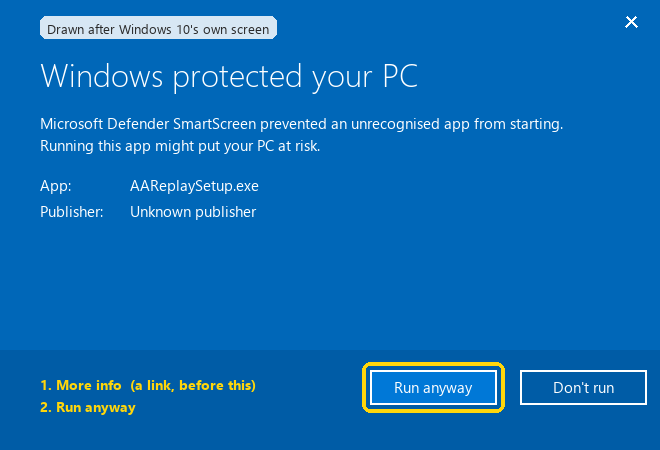
- AA Replay setup downloads the installer and installs AA Replay for you only. It needs no admin rights. When it finishes, the AA Replay launcher opens.
Updates come by themselves. The launcher downloads them itself and checks each one with its own key. Windows never warns about them, and they never ask you anything.
2. Create your account and play
- Click Have an invite code? Create an account. Pick a name and a password, and enter your invite code. This is your AA Replay account. Never type your AA Classic password here.
- Leave Remember me on this PC ticked. The launcher keeps a sign-in from the server, never your password, and needs it to send your recordings.
- Press Play. The first time, the launcher makes its own copy of the game (about 65 MB, a minute or two).
3. Turn on recording
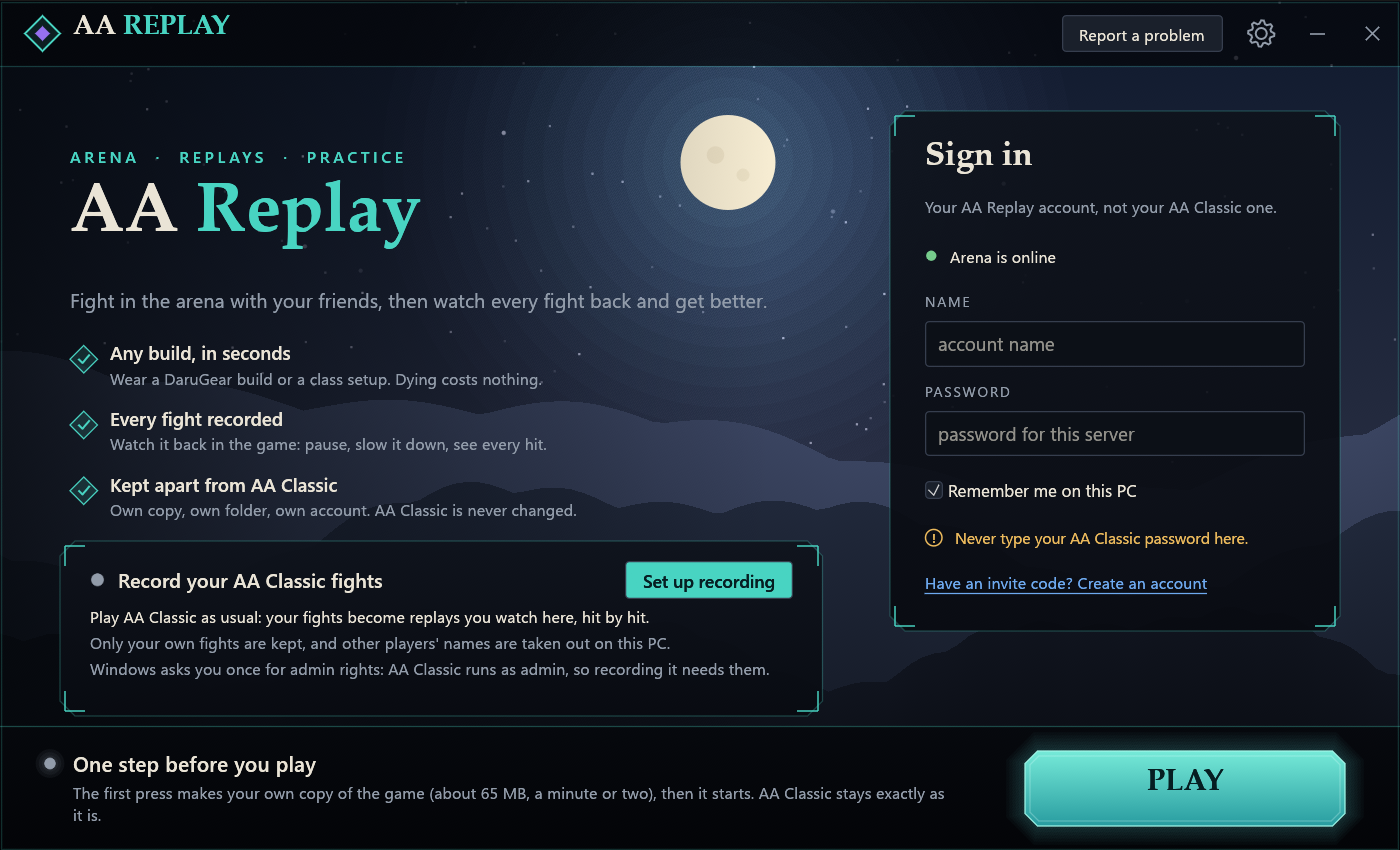
- On the Play screen, click Set up recording. Review the live recording notice, then click Enable recording to proceed. The recorder attaches to live AA Classic and routes its connection through a local relay. AA Classic's approval has not been verified. The launcher downloads the recorder (about 47 MB) and starts it with Windows.
- Windows then asks once for admin rights for AA Replay ("Publisher: Unknown" until it is signed). AA Classic runs as admin, so recording it needs admin rights too. Answer Yes. This is the only time AA Replay asks.
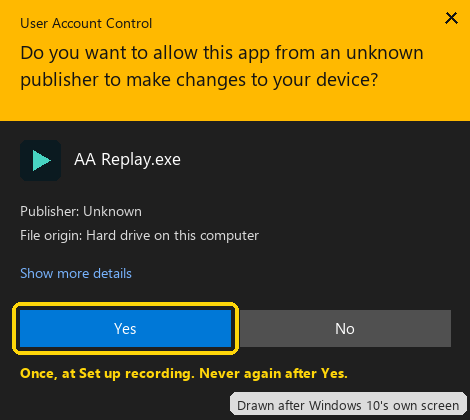
- Play AA Classic as usual: start it from its own launcher. AA Classic's launcher asks for admin rights, as it always does. AA Replay does not ask again. The recorder waits in the background and does not start or close the game.
- While you play, the card in the AA Replay launcher says Recording.
- AA Classic shows a notice directing you to the AA Replay launcher. Use the launcher's Recording card to check capture status. Close AA Classic before using Turn off if you want to avoid interrupting your session. The notice appears on the next AA Classic start after setup.
If you answer No at setup, recording still works. Windows then asks for AA Replay each time you start AA Classic's launcher, and a session where you answer No there is not recorded. The card says so. Its Set up admin once button asks again, once.
If your Windows user is not an admin, each AA Classic start asks for an admin's password for AA Replay. The card says this too.
4. Watch your fights
- Close AA Classic when you are done. A few seconds later your fights are cut out of the session. The card says "Last recording ended at ...: N fights found."
- Open the AA Replay launcher while signed in. New fights are sent to your replays by themselves. The card says "N fights sent to your replays."
- Press Play. In the arena, open Watch a fight in the Arena window, or type
/pts replays. Your own fights are marked Your AAC. Pause, slow down, jump back, and read every hit in the side logs.
The server keeps your newest 10 recordings.
When the card says something is wrong
Each problem is one sentence that says what to do. The common ones:
| The card says | What to do |
|---|---|
| AA Classic was already running when recording started | Close AA Classic and start it again from its launcher. |
| The AA Replay admin prompt was answered No | Close AA Classic, start it again, and answer Yes. Or press Set up admin once, and it stops asking. |
| Admin rights were not given, so Windows asks at each AA Classic start | Press Set up admin once and answer Yes. |
| AA Replay's admin task did not start | Start AA Classic again. If it keeps happening, press Set up recording again. |
| Windows refused the recorder access to AA Classic | Start AA Classic again and answer Yes to the AA Replay prompt. |
| The recorder could not attach to AA Classic (an antivirus may be blocking it) | Allow the folder the card names in your antivirus, then start AA Classic again. |
| Another program already uses the recorder's address | Close that program, or another recorder. Recording then starts by itself. |
| Your fights could not be sent yet | Nothing: they are tried again every minute while the launcher is open. |
| Recording is off | Press Turn on. |
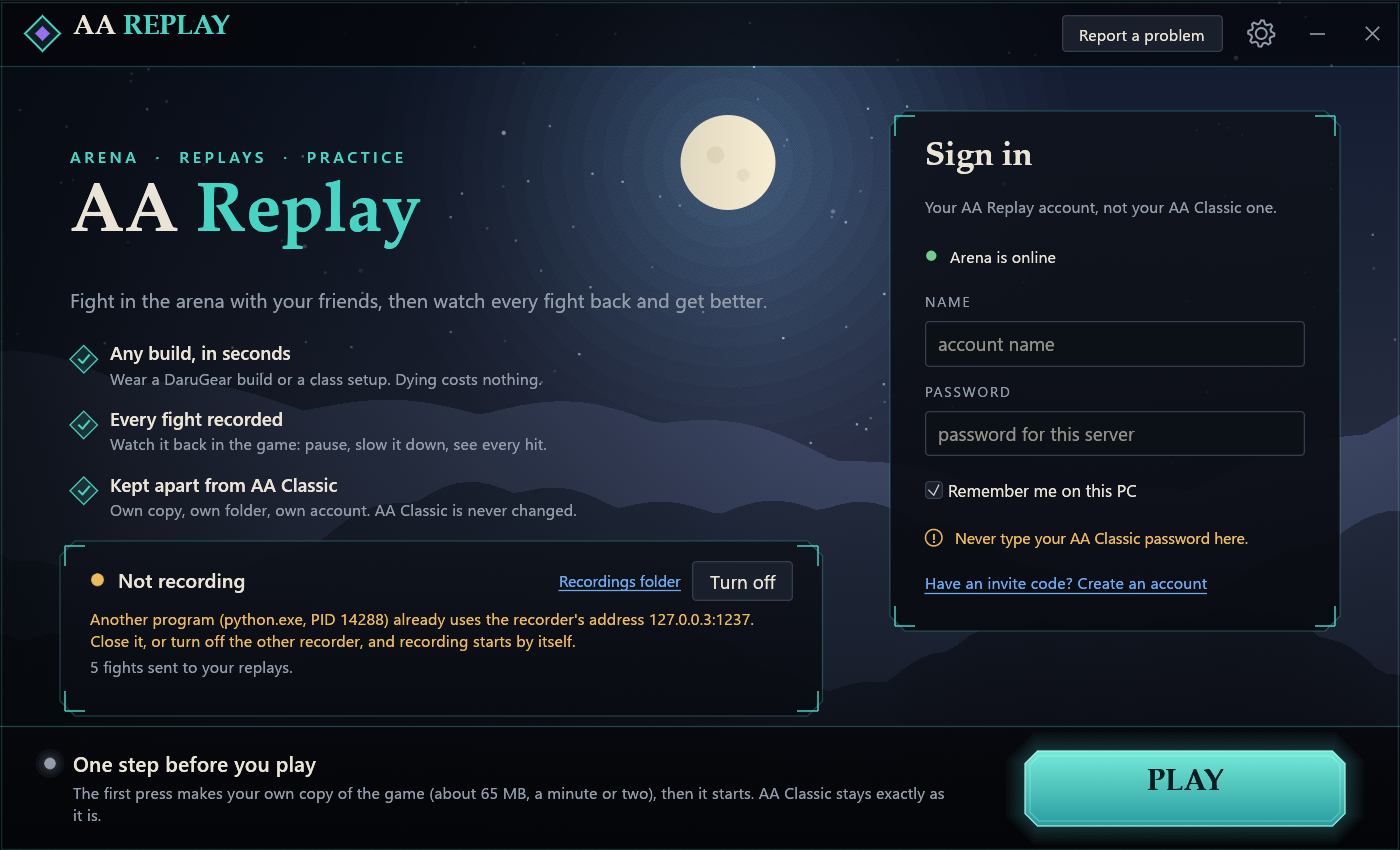
Still stuck? Use Report a problem at the top of the launcher. It sends your words and the launcher's log to the server's owner.
What is recorded, and what leaves your PC
- The recorder copies AA Classic's traffic while you play and removes the contents of known credential-bearing messages. It suppresses the game's crash and performance uploads for recorded sessions.
- Raw captures stay on your PC in
%LOCALAPPDATA%\AAEmuSandbox\recordings. Use Recordings folder on the card to open it. - The launcher sends converted fights and available thumbnails to the AA Replay server. Fight replays can include both players' character names.
Turning it off
- Turn off on the card stops recording and removes it from Windows start, and the recording notice from AA Classic. What was recorded stays.
- To remove AA Replay completely, uninstall it from Windows' Apps list. That also removes the admin rights it kept (the Windows task "AA Replay Watcher" and its folder in Program Files), without asking. The uninstaller then offers to delete
%LOCALAPPDATA%\AAEmuSandbox(the game copy, settings and recordings).